Tuesday, 30 July 2013

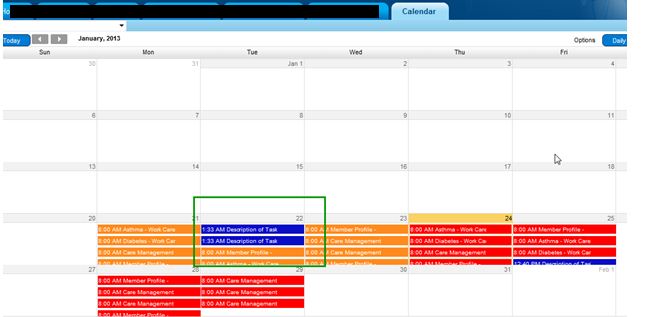
Add Custom Task to CMF Calendar

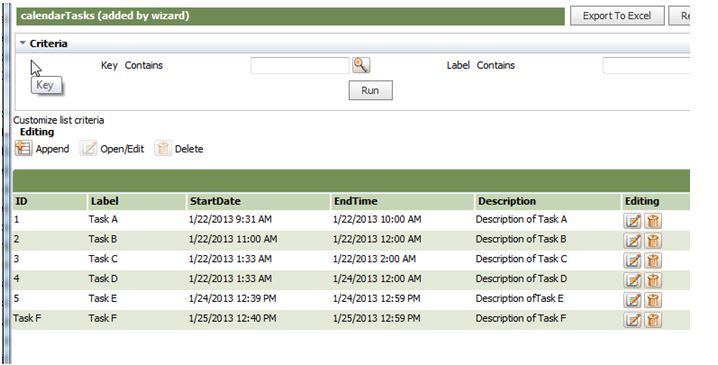
1.       Create  “******Data-TestCalTask”  class and create data table “CalendarTasks “;


2.       Create list view to retrieve  data from the table ;


3.       Save as the pyCMEvents ;


4.       Insert necessary parameter for the calendar to get the information by list view;


5.       Custom events , populating from the table;


Set file path and file name as parameters on the Connect File

1. Define a new page with two properties to hold file path and file name

2.  Set file path and file name as a input parameter to the activity

3. Use parameters to set the file path and file name

4.  Define file path and file name on the connect file as a reference to the properties on the page created above
(used ‘=’ to define the fields as a reference to the page which created  )

5.  To change the file name and path at runtime we need to change the properties on the page  and  call the Connect-File method


Friday, 17 May 2013

Create External Database Connection


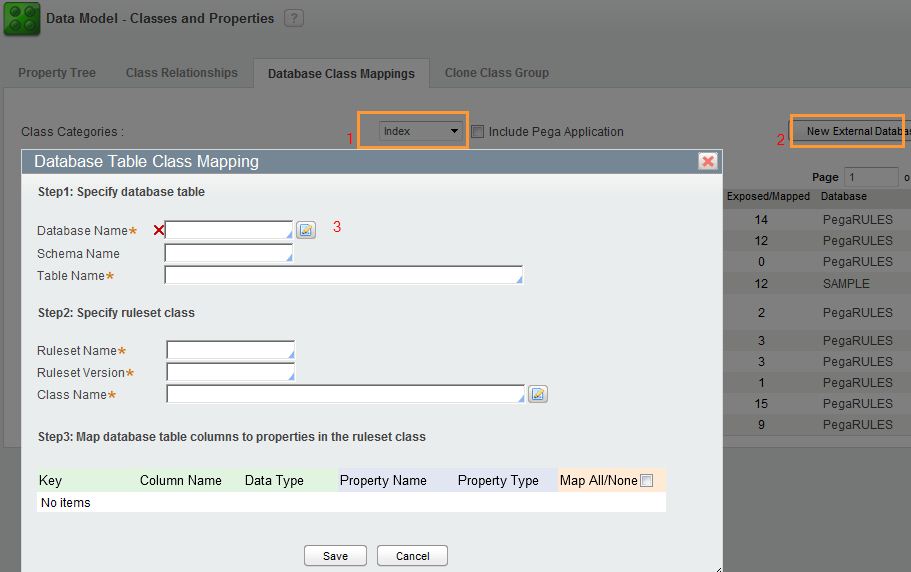
1.    Go to Pega button > Data model > Classes and properties > Database Class mappings and click “New external database table class mapping” button;

2.       Name the connection and click create button beside the database name;

3.       Add the connection option from the how to connect drop down and JDBC URL , add external database username and the password for Authentication

Ex: JDBC URL
jdbc:sqlserver://localhost:<<PortNumber>>;databaseName= <<database name>>


4.       Click on Test Connection button


Thursday, 16 May 2013

Create Declare Index


1.   Create table to hold indexed data inside the pegarules DB by using following SQL script :
(Don’t change the first 3 columns as they are using as primary keys for the Index- classes later)

USE [<<DB-Name>>]GO

SET ANSI_NULLS ON
GO

SET QUOTED_IDENTIFIER ON
GO

SET ANSI_PADDING ON
GO

CREATE TABLE [dbo].[<<Table-Name>>](
   
      [pxIndexCount] [decimal](18, 0) NULL,
      [pxIndexPurpose] [varchar](32) NULL,
      [pxInsIndexedKey] [varchar](255) NULL,

      [pxInsIndexedClass] [varchar](96) NULL,
      [pxInsName] [varchar](128) NULL,
      [pxObjClass] [varchar](96) NULL,
      [pzInsKey] [varchar](255) NOT NULL,
 
      [<<Coloumn name8>>] [varchar](50) NULL,
      [<<Coloumn name9>>] [varchar](50) NULL,
   

 CONSTRAINT [<<Table-Name>>_PK] PRIMARY KEY CLUSTERED
(
      [pzInsKey] ASC
)WITH (PAD_INDEX  = OFF, STATISTICS_NORECOMPUTE  = OFF, IGNORE_DUP_KEY = OFF, ALLOW_ROW_LOCKS  = ON, ALLOW_PAGE_LOCKS  = ON) ON [PRIMARY]
) ON [PRIMARY]

2.   Go to Pega button > Data model > Classes and properties > Database Class mappings
And select index from the dropdown and click “New external database table class mapping” button


                                I.            For the DB name, select the DB connection which connect to the external DB
Go to : Create Database Connection
                              II.            Table name -> External table name which created above
                            III.            Class Name -> 
Create a class which derive from Index-  Ex: Index-XXX
                            IV.            Tick the  pxIndexCount ,pxIndexPurpose, pxInsIndexedKey

Click save and PRPC will create the Index-XXXX class and map it with the DB table.

3.       Open the definition of the Index-XXXX class, which created above ,
The keys should be following order otherwise it will throw an error when it use by the declare-Index rules (If not change it)


4.       Create Declare-Index rule and map the page/properties to create index.
The index records will save when work object save as a Blob record.
What is Work-Object- ?

Work-Object- is the parent of the classes, that are nor covers or nor folders

Get PageList Exported to excel

  Get PageList Exported to excel 1. Create a Excel template as following format      A1: Column Name : Case ID       A2: Property Reference ...